
September 16, 2026
The No-Rise Surprise
Why Additional Conveyance Area Doesn’t Always Lower Water Surface
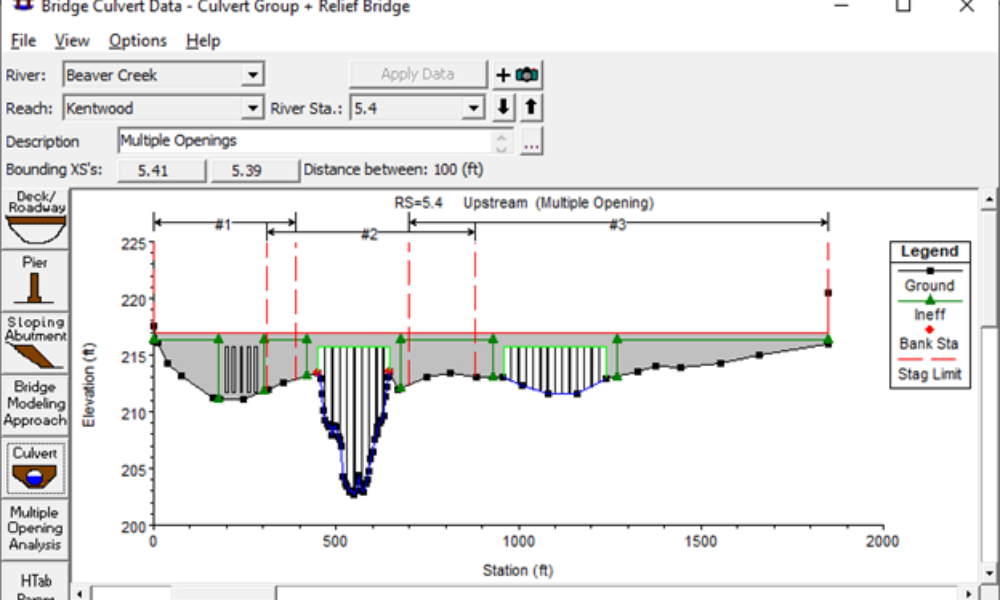
Ahead of the wide-scale implementation of the 2-dimensional (2-D) modeling module in HEC-RAS, I wanted to share a quick tip that will be useful for editing your 1-dimensional (1-D) HEC-RAS model to prepare to couple your 1-D channel with a 2-D overbank area. It’s common to have a cross section with a well-defined channel and a wide, shallow floodplain in the overbank adjacent to the channel. This can be seen in the figure below. As can be seen from this figure, flow in the channel (between the bank stations denoted by the red dots) will have to reach a stage of approximately ten feet before spilling into the left overbank.

Using a 1-D channel to represent the main channel and a 2-D spreading area to compute flooding depths
and velocities in the overbank would require that we trim this cross section to only represent the main portion of the channel (i.e., between the channel banks). This is bulky and cumbersome in the regular cross section data editor (i.e., you have to delete points from the table, then delete blank rows above the first point). However, there is a quicker and easier way to accomplish this task! In the graphical cross section data editor, under “Options,” click on the “Delete Objects” button. Your mouse will now have a negative sign immediate beside it when hovering over the cross section display area.

You can click on individual items (ground points, ineffective flow areas, levees, etc.), or you can drag and drop a window and delete several ground points at the same time. This drag and drop functionality is shown in the next two screenshots.


After deleting all of the ground points outside of the main channel, the cross section will now only consist of the ground points between the bank points originally defined in the cross section.

When you scroll to the next cross section, the graphical cross section data editor will ask if you would like to change the cut line end point stations of the georeferenced cut line to match the changes specified in the cross section since, in this case, the overall cross section width was reduced compared to the original cross section. I usually click “Accept edits and adjust cut line” to represent the georeferenced cross section in plan view using its actual width in the geometric data editor window.

Now you’re ready to couple your 1-D main channel to a 2-D overbank spreading area without having to delete ground points in table of the regular cross section data editor. Hopefully this will save you some time at some point in the future!
Comments
The comments are closed.